
Live wallboards and call search for Webex Contact Center
Webex Contact Center (WxCC) tracks every call in every queue, but getting that onto a screen your agents and supervisors can watch means Analyzer dashboards and a Control Hub login. VoIP Detective turns the same data into wallboards that run on any screen with a plain URL, and gives administrators a call search with a timeline for every call, from the IVR to wrap-up. Deploy the virtual machine, authorize it in Webex, and your queues are on the wall in minutes.
The WxCC wallboard and call search are licensed separately (SKU VD-WXCC). Contact us for a quote.
Built for Webex Contact Center
- Reads queue, agent, and call data straight from Cisco’s official WxCC APIs, so every number on the wall is the real figure from Webex, not an estimate.
- Runs as a virtual machine on your own hypervisor. Nothing to install on agent desktops, no changes to your flows or queues, and one authorization in Webex.
- Any number of screens. Every wallboard shares one cache, so ten screens or a hundred put the same light load on Webex.
Why teams choose VoIP Detective for WxCC
- Wallboards without a login. Each wallboard is a URL. Open it on a TV, a browser, or a kiosk and it refreshes every 15 seconds on its own.
- Queue boards and team boards. Watch one queue, every queue, or a team: the queues it serves plus every agent on the team, including the ones who are logged out.
- Multiple layouts. Classic for a scrolling page, Fit to lock everything to the screen, Minimal for a single-row summary with the agents filling the rest.
- Click through to the calls. The abandoned and service-level tiles open the call search already filtered to that queue, so a bad number on the wall becomes a list of the calls behind it.
- A timeline for every call. See how long a caller spent in the IVR, waiting, ringing an agent, talking, and in wrap-up, with the agents and queues involved at each step.
- Call details stay in Webex. The call search runs live against Webex every time. VoIP Detective never stores caller numbers or call records for WxCC.
Get started with the VoIP Detective WxCC wallboard
- Download the VoIP Detective virtual machine and deploy it on your hypervisor.
- Add your VoIP Detective Pro license key and your VD-WXCC license key, then turn on Webex Contact Center under Administration.
- Authorize VoIP Detective for your Webex organization and enter the tokens. Step-by-step instructions are in our Configuring Webex Contact Center article.
Your queues and teams are read from Webex within the hour, or right away with the refresh buttons on the admin page, and the first wallboard is a copy-and-paste URL from the built-in wallboard builder.
Pricing
The Webex Contact Center wallboard and call search are licensed separately from VoIP Detective Pro, which is required. One VD-WXCC license covers your whole installation, with no per-agent, per-queue, or per-screen pricing.
Pro
$1499 / year
- Administrator call search with per-call timeline
- Includes Webex Calling, CUCM, MS Teams, UCCX, and CUBE reporting
- Store millions of call records (no time or retention limits on data)
- Schedule automated reports to be emailed at the time you choose
- Ticket-based support and all upgrades included
WxCC Wallboards and Search (SKU VD-WXCC)
$Contact us for a quote
- Webex Contact Center queue and team wallboards on unlimited screens
- Administrator call search with per-call timeline
- Requires VoIP Detective Pro
- Licensed per installation, not per agent, queue, or screen
What VoIP Detective shows for Webex Contact Center
The WxCC integration has two parts: wallboards for the screen on the wall, and a call search for the administrator at a desk. This page outlines each at a high level. If you have any questions, feel free to send us a message.
Click any item to jump to its details, or scroll down to see all of them.
PopularTeam WallboardThe queues a team serves and every agent on it, logged in or out.
LayoutsClassic, Fit, and Minimal, chosen in the URL.
Wallboard BuilderPick a queue or team and the options, copy the URL, done.
Call SearchFind abandoned, dropped, and slow calls across any queue, live from Webex.
Call TimelineEvery step of one call, from IVR to wrap-up, with a CSV download.
Queue Wallboard
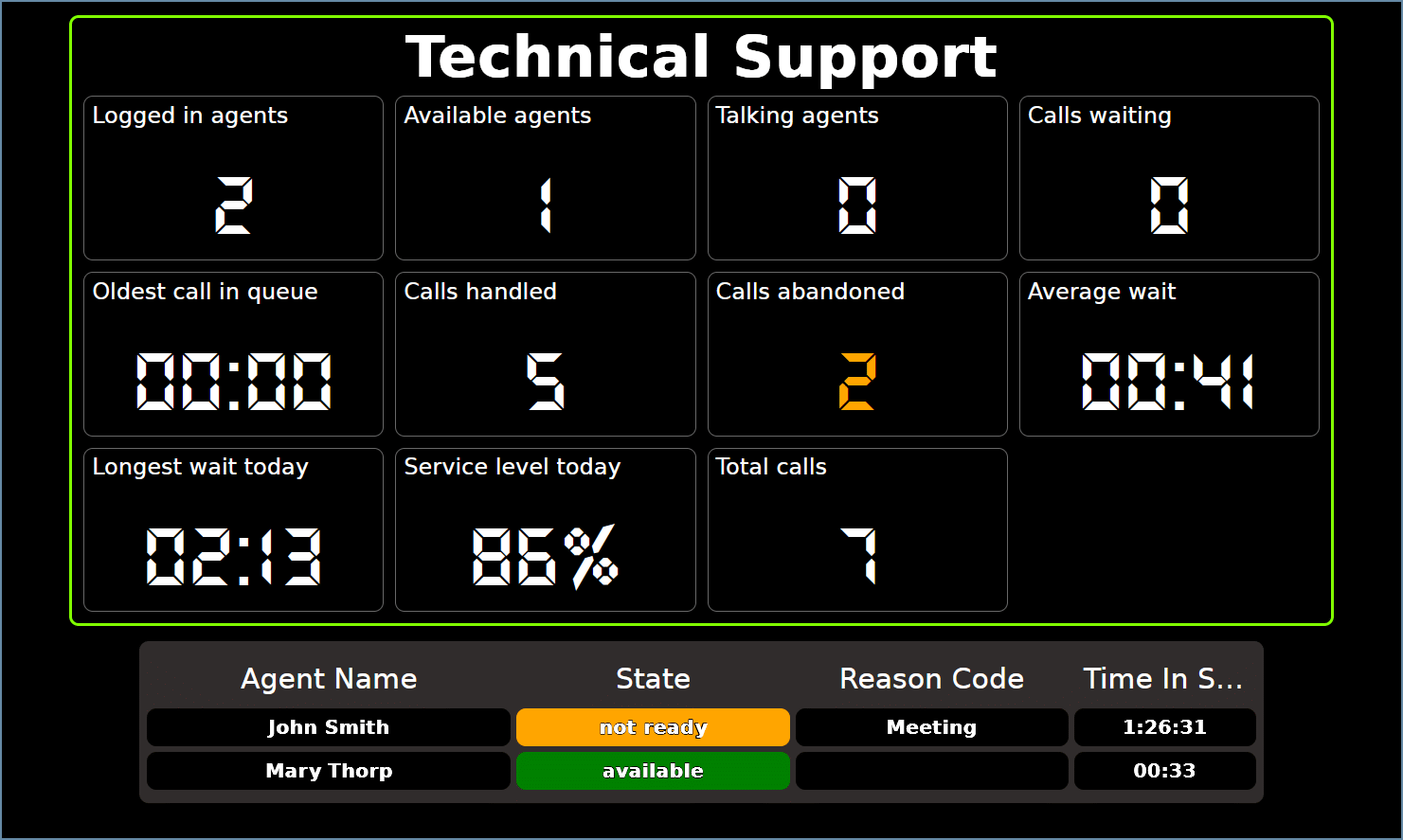
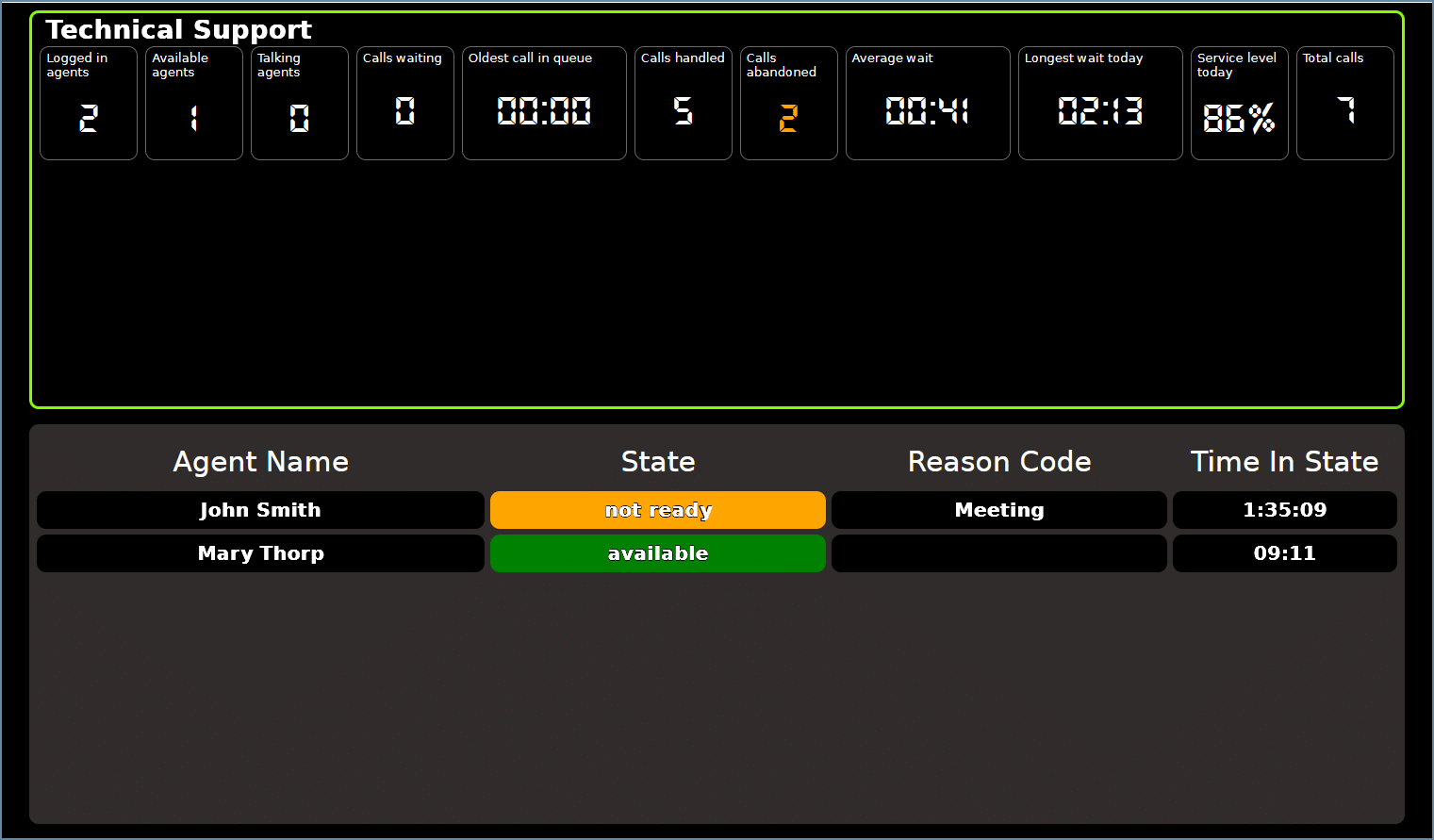
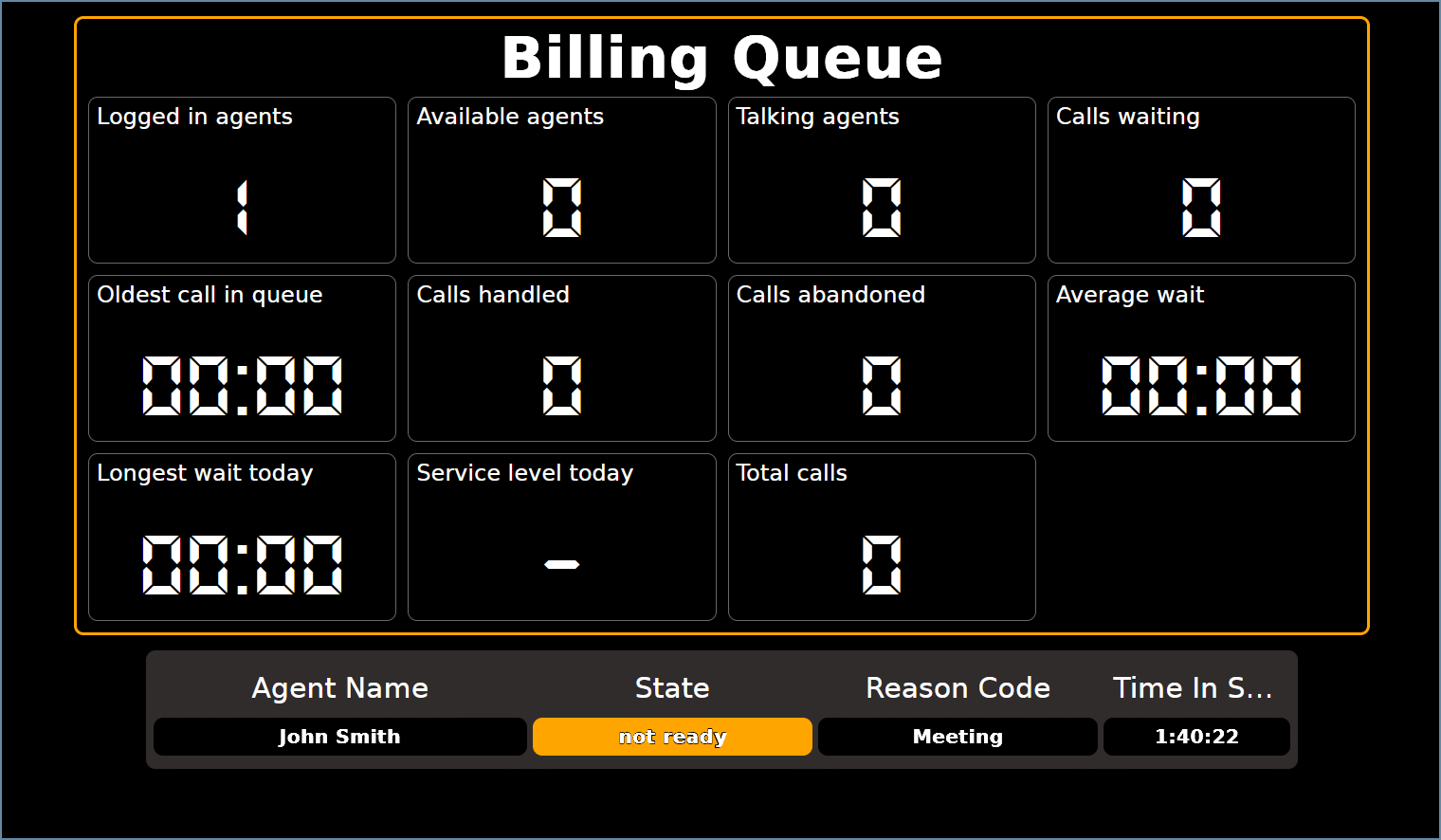
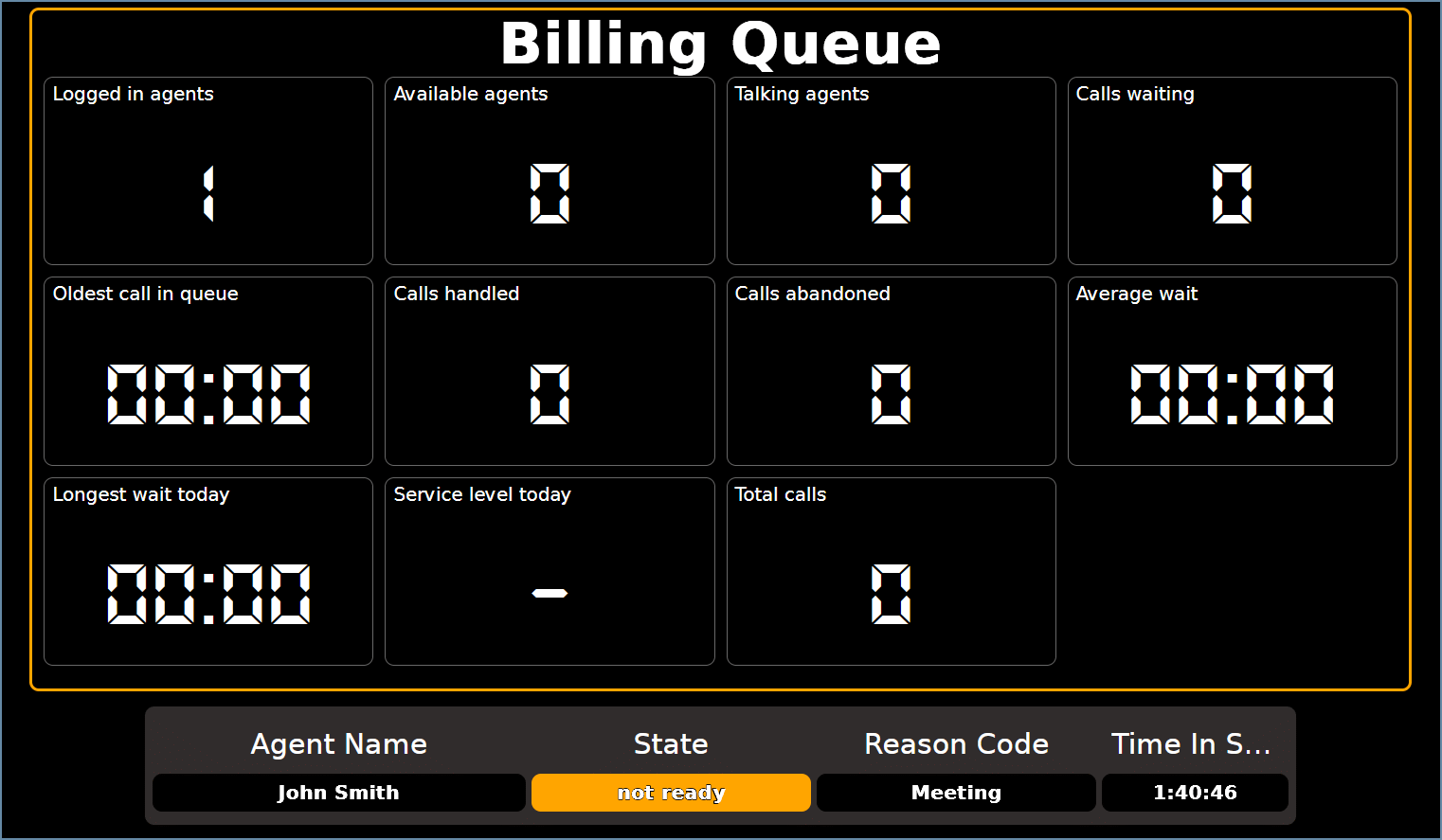
The queue wallboard shows one card per queue, or a single queue on its own, with the agents who serve it listed underneath. Each card shows calls waiting now, the oldest call, calls handled and abandoned today, today’s service level, average and longest wait, total calls, and how many agents are logged in, available, and talking. The border of each card changes colour when callers are waiting, when no agent is free, or when no agent is logged in, so a problem is visible from across the room.
Service level is Webex’s own verdict on each call, so the number on the wall matches what Analyzer reports. The abandoned and service-level tiles are links: click one and the call search opens already filtered to that queue.
Sample WxCC queue wallboard:
Team Wallboard
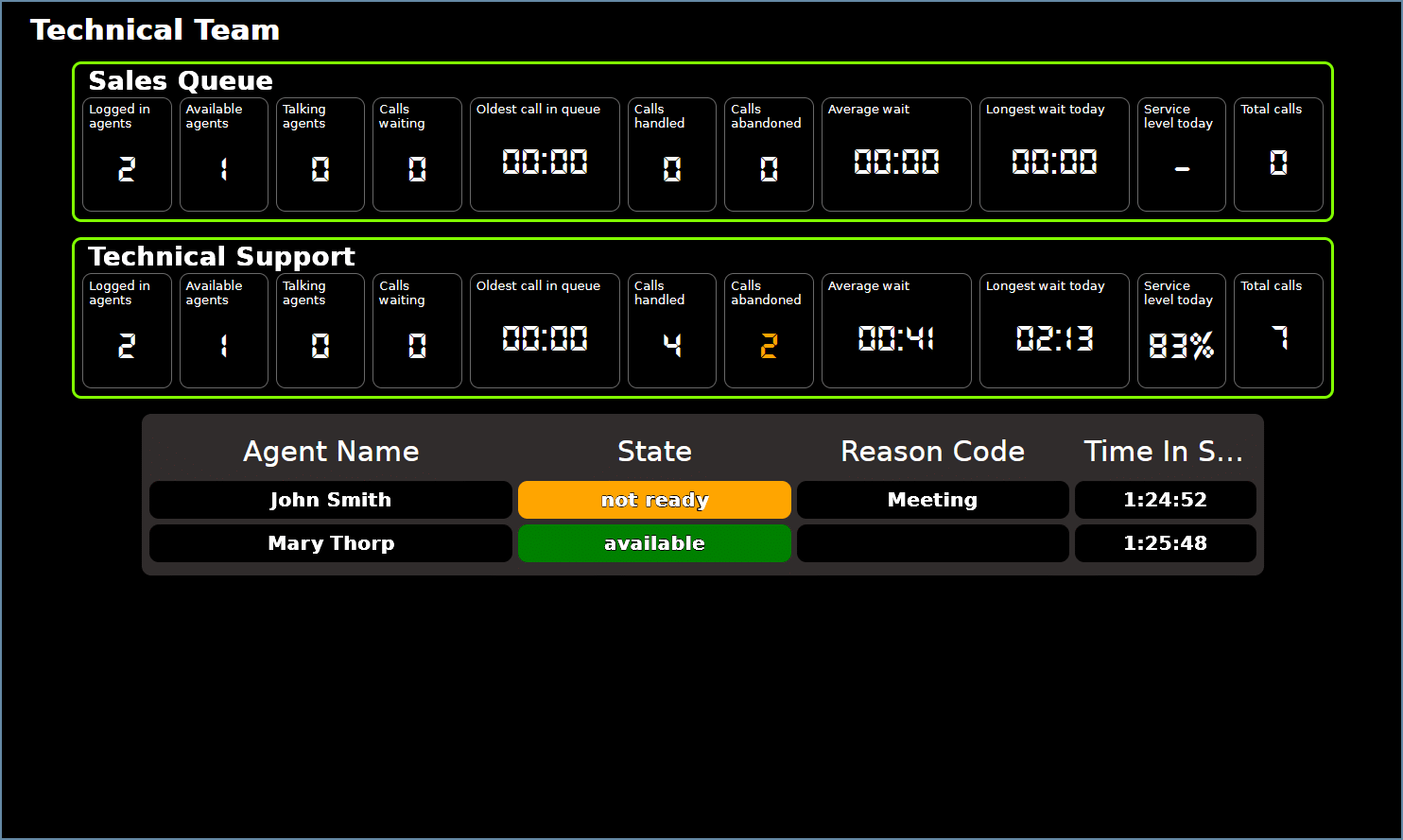
A team wallboard is built for the supervisor of one team. It shows a compact card for every queue the team serves, followed by the whole team roster: each agent’s state, the reason if they are not ready, and how long they have been in that state. Agents who are logged out appear too, so you can see who is missing, not only who is busy. Options in the URL hide the agents, hide the queues, or hide the logged-out agents.
Sample WxCC team wallboard:
Layouts
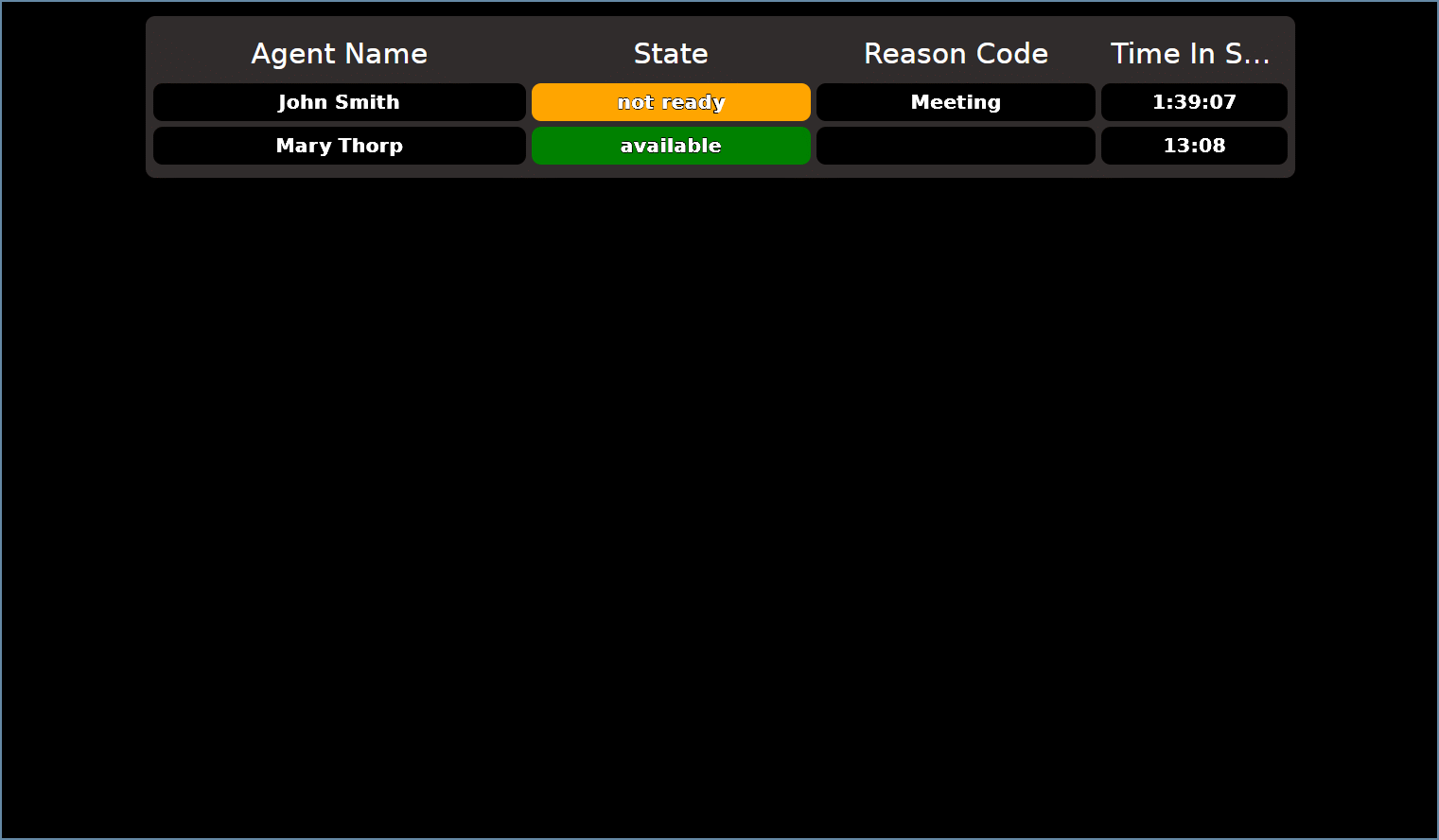
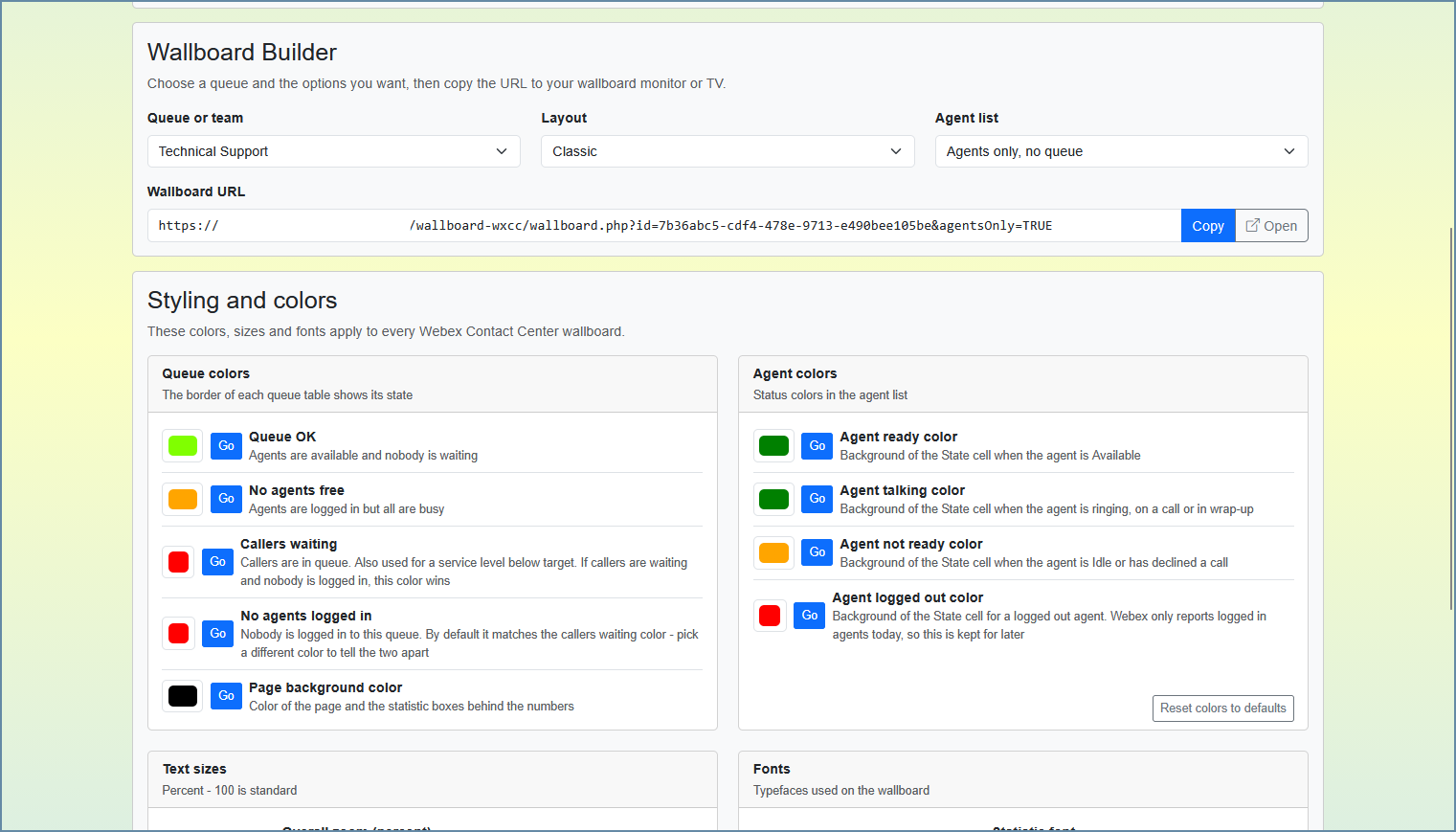
Every wallboard comes in three layouts, chosen with a word in the URL. Classic lays the cards out at their natural size and scrolls if there are more than fit. Fit locks everything to the screen, so a TV with no keyboard always shows the whole picture. Minimal shrinks each queue to a single row and gives the rest of the screen to the agents. Colours, sizes, and fonts are set once on the admin page and apply to every WxCC wallboard.
Wallboard Builder
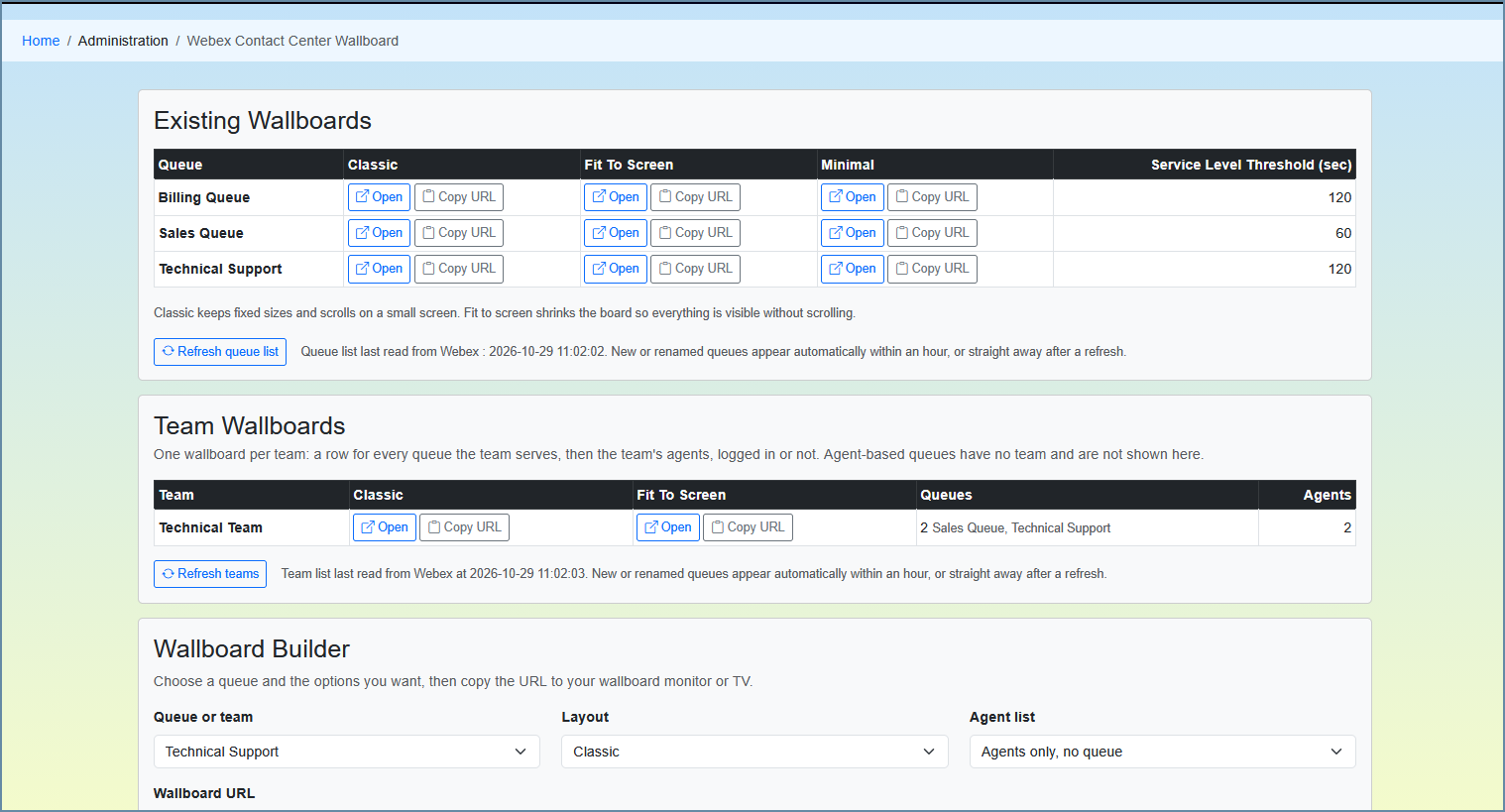
Wallboards are not configured one by one. The admin page lists a ready-made URL for every queue and every team, and a builder lets you pick a queue or team, the layout, and the agent options, then copy the finished URL. Paste it into a browser on the screen you want and the wallboard is live. The same page holds the styling settings and a troubleshooting section with token status, connection checks, live API tests, and a downloadable support file that never includes tokens and masks caller numbers.
Call Search
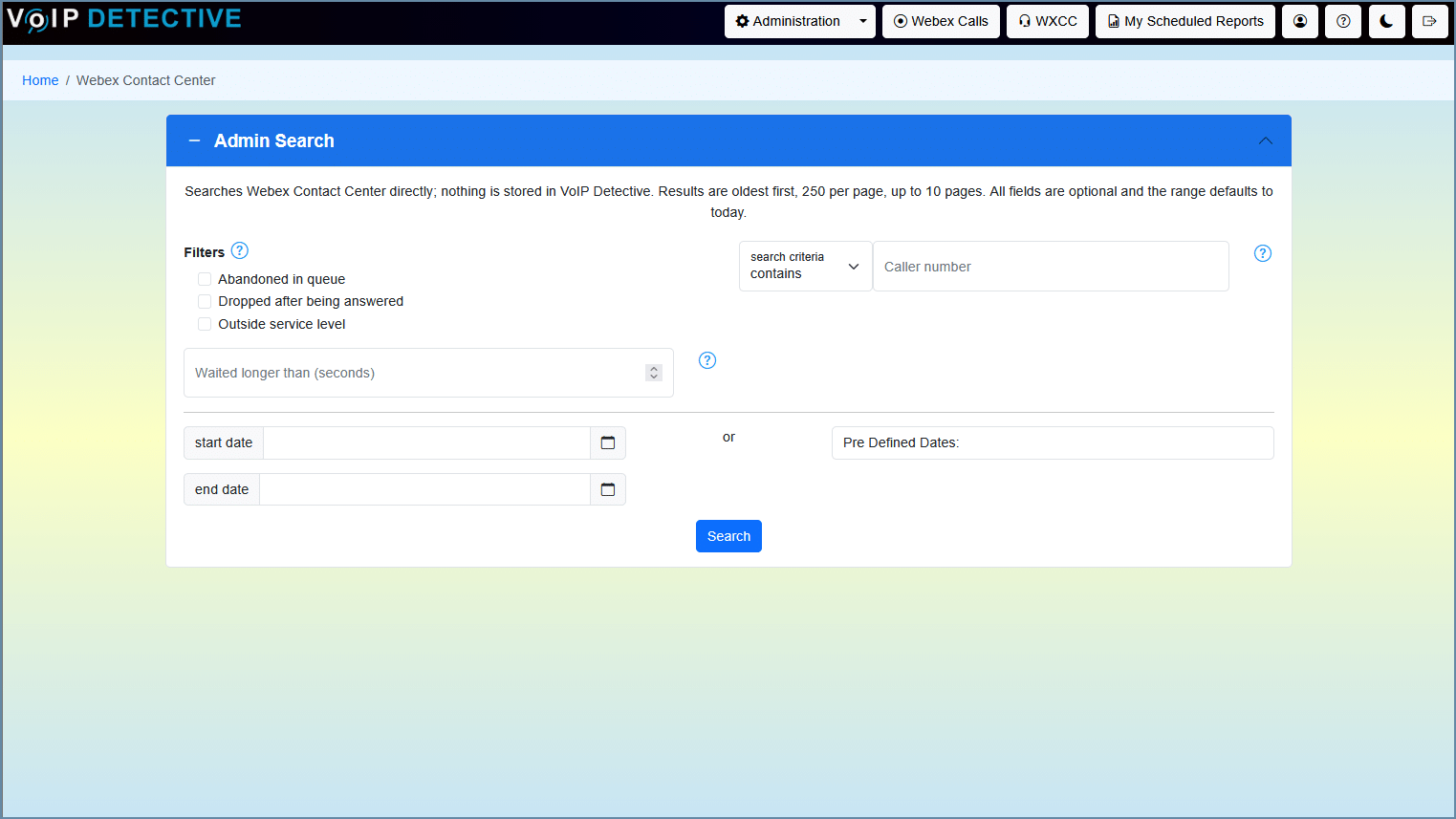
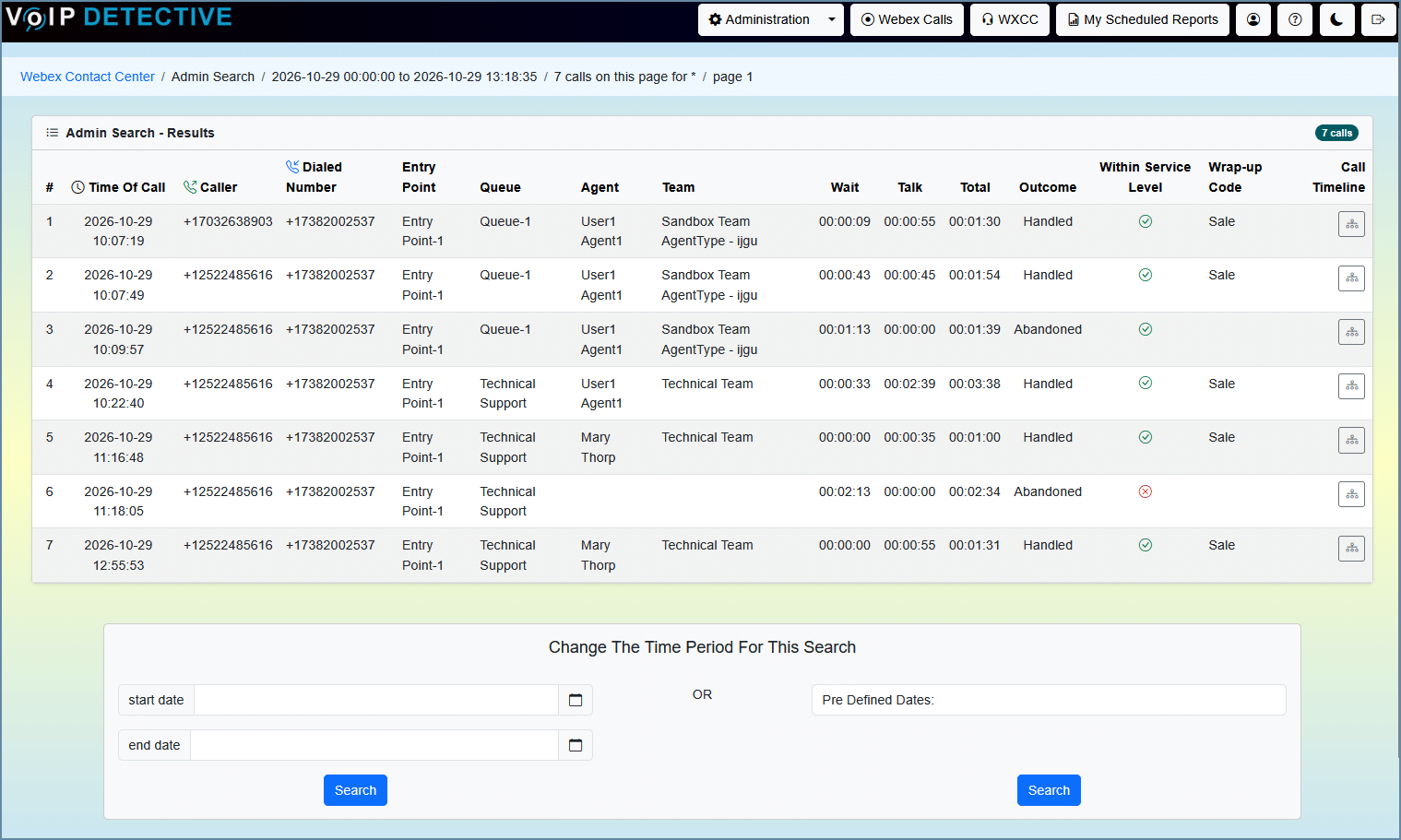
The call search lets an administrator find calls across every WxCC queue, live from Webex. Search by caller number, or filter to abandoned calls, calls dropped after an agent answered, calls outside the service level, calls that waited longer than a number of seconds, or a single queue, over any date range up to a year. Each result shows the time, caller, dialed number, entry point, queue, agent, team, wait, talk and total time, outcome, whether it met the service level, and the wrap-up code.
Nothing is copied or stored. Every search goes to Webex at the moment you run it, which keeps call details where they already live.
Sample output from the WxCC call search:
Call Timeline
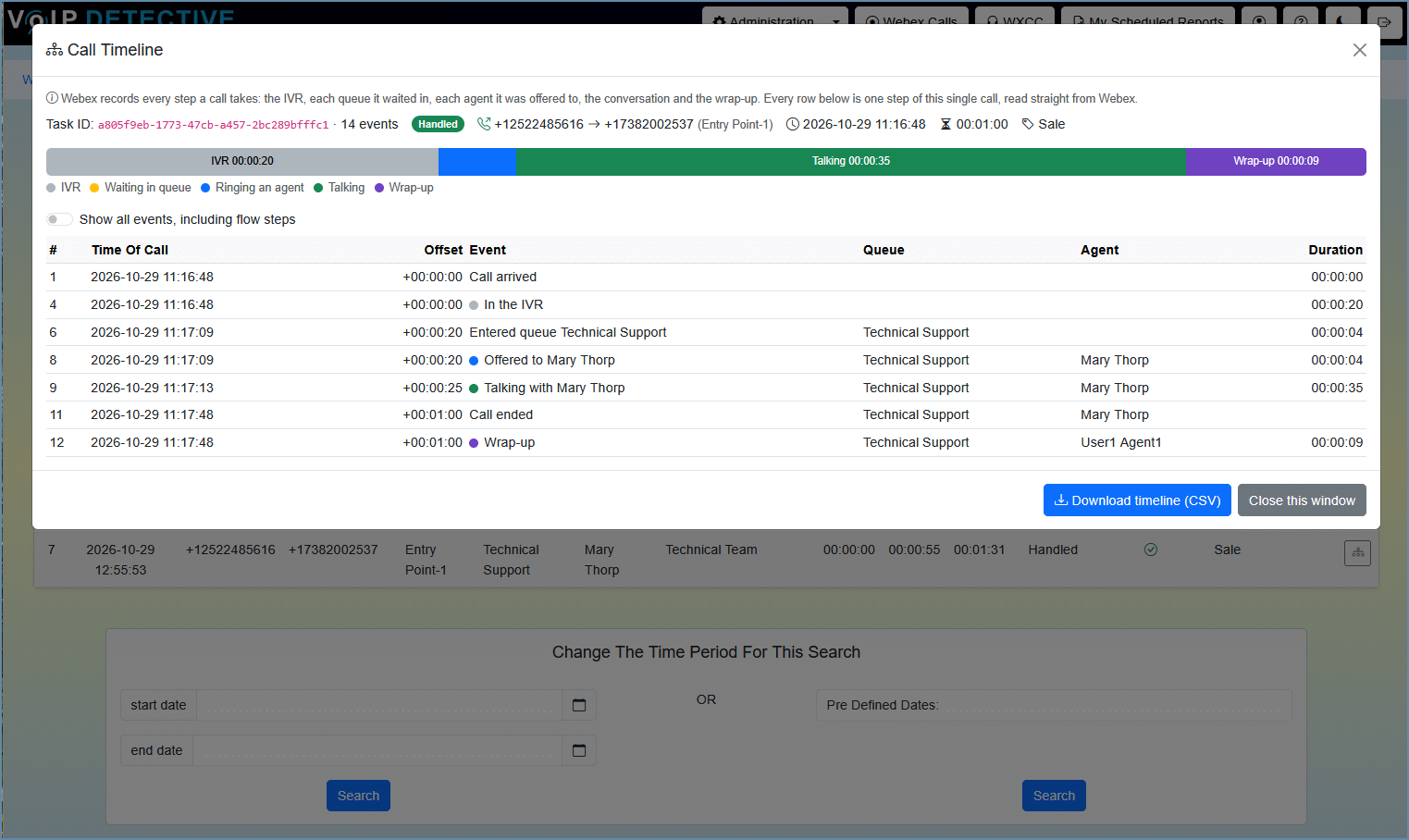
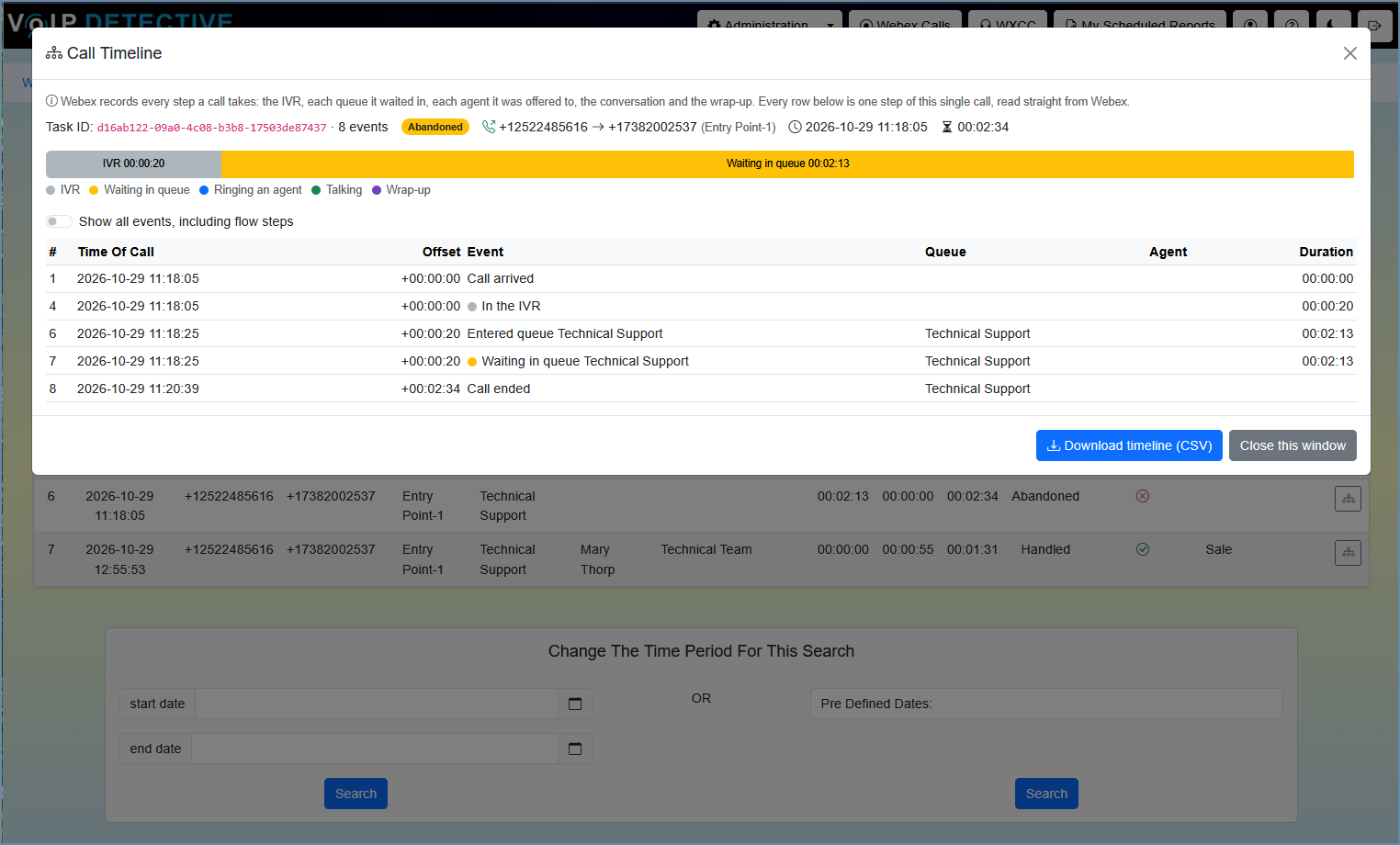
Every row in the call search has a timeline button. It opens the full history of that one call as Webex recorded it: the IVR, each wait in queue, each offer to an agent and how long it rang, the conversation, and wrap-up. A bar across the top shows the proportion of the call spent in each phase, and the table underneath lists every step with the queue or agent involved. Switch on “show all events” to see the flow steps and recording events too, or download the timeline as a CSV.
What VoIP Detective stores
VoIP Detective keeps only what the wallboards need to draw the screen: queue names and settings, team names, agent IDs and names, and each agent’s current state. It refreshes that list from Webex once an hour. Caller numbers and call details are read from Webex when a wallboard or search asks for them and are shown on screen, but never written to the VoIP Detective database and never exported. Access tokens are stored on your VoIP Detective server and nowhere else.
Questions before you download
What do I need on the Webex side?
A Webex Contact Center organization and an administrator who can authorize an integration. VoIP Detective is listed on the official Cisco Webex App Hub. The full walkthrough is in our Configuring Webex Contact Center article.
How does VoIP Detective get the data?
It asks Webex. While a wallboard is open on a screen, VoIP Detective reads the current queue and agent data from Cisco’s Search API every 15 seconds. The call search and timeline ask Webex at the moment you run them. Queues, teams, and agents are refreshed once an hour. There are no webhooks to set up and no public address your server needs to expose.
Do wallboards need a login?
No. A wallboard is a plain URL so it can run on a TV or kiosk with no keyboard. Anyone who has the URL on your network can open it, so treat it like any other internal page. The call search, the timeline, and the admin page all require an administrator login.
How many screens can I run?
As many as you like. All wallboards on one VoIP Detective server share a single cache, so Webex sees the same small number of requests whether one screen or fifty are open. This stays well inside Cisco’s rate limit for the API.
Where is my data stored?
On your site. VoIP Detective is a virtual machine that runs in your own environment. It connects out to Webex for live data and to *.voipdetective.com for software updates and token refreshes; nothing else leaves your network, and call details are never stored.
What are the limits?
Today the WxCC wallboard and call search cover inbound telephony calls. Logged-out agents appear on team wallboards but not on single-queue wallboards, and agent-based queues appear on queue wallboards but not on team wallboards. The service-level target line on the wallboard is 80%, and “today” on the wallboard follows the VoIP Detective server’s timezone.
Can one installation report on WxCC and Webex Calling together?
Yes. A single VoIP Detective installation covers Webex Contact Center, Webex Calling, CUCM, and MS Teams, with CUBE analytics and the UCCX wallboard. Users log in to one place and pick the platform they want.
How is it licensed?
The WxCC wallboard and call search are a separate product, SKU VD-WXCC, priced by quote per installation regardless of how many agents, queues, or screens you have. It requires VoIP Detective Pro ($1,499 per year), which covers the other platforms, unlimited call-record retention, scheduled reports, and ticket-based support. See the ordering page.
How long does setup take?
Plan on about an hour: deploy the VM, add your Pro and VD-WXCC license keys, turn on Webex Contact Center, and authorize the integration. Queues and teams appear as soon as the first refresh runs, and the first wallboard is one copied URL away.
Put your Webex Contact Center queues on the wall today
Download VoIP Detective, add your Pro and VD-WXCC license keys, and authorize it in Webex. Your queues, agents, and service levels are on screen within the hour, and every bad number on the wall is one click from the calls behind it.
Questions first? Ask us directly.